Developers
blukii Hub Management on blukii Manager cloud
blukii Manager Login
Start your internet browser and navigate to https://manager.blukii.com.
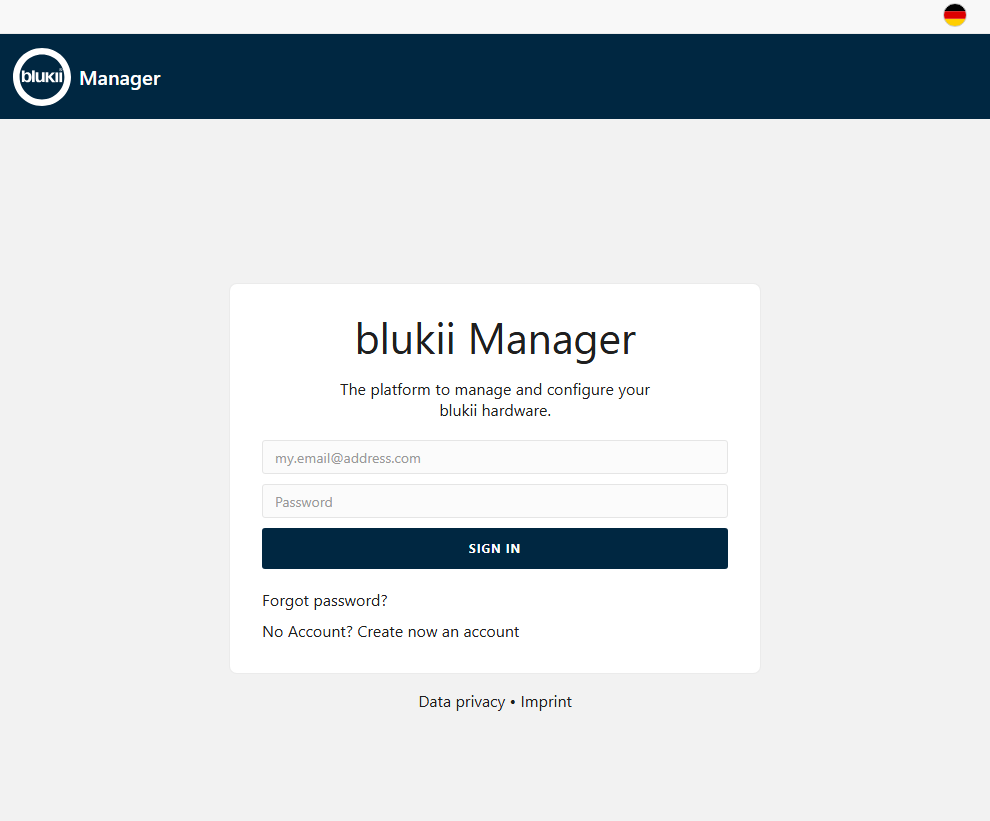
Create a blukii Manager account and login.
Assign your Hubs to your account
Click “My hubs” in upper right navigation, this leads to your Hubs list.
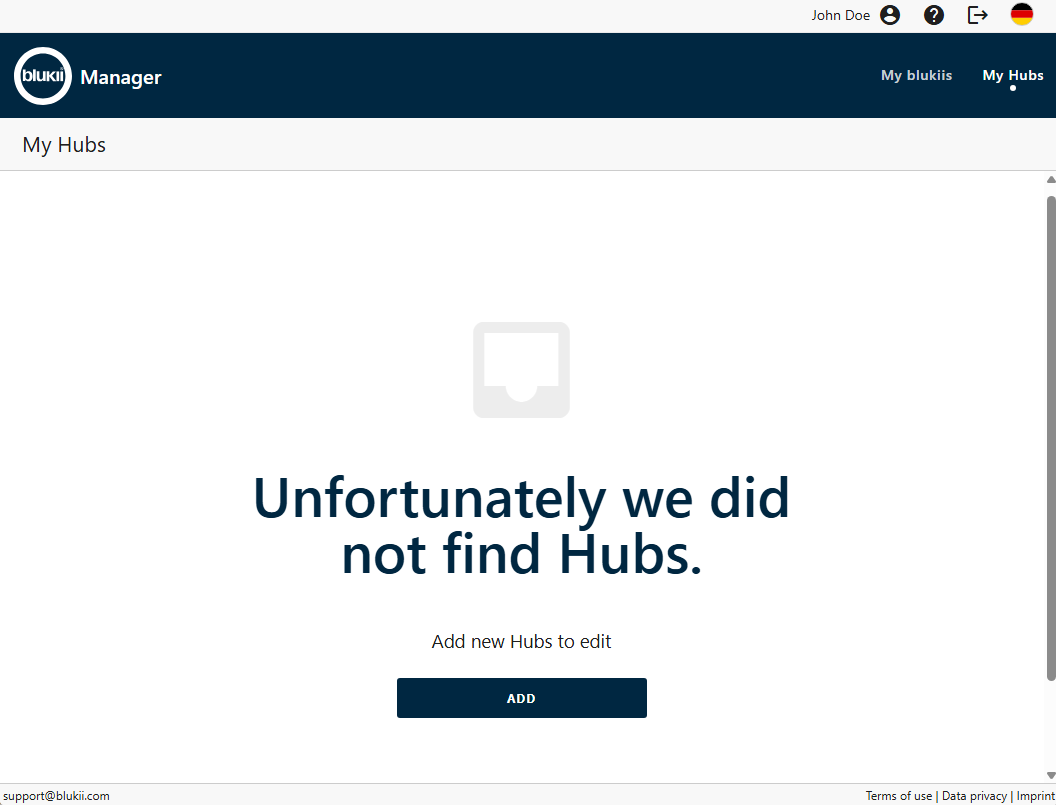
If no Hubs are assigned yet, click “Add” to assign new hubs to your account.
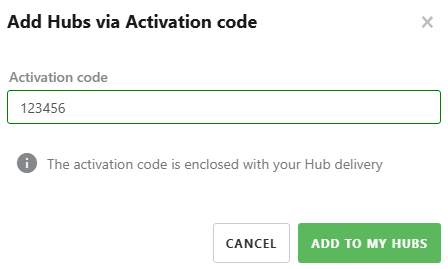
The Hubs delivery package contains an activation code, that allows you to assign your blukiis and Hubs.
Insert the activation code to the “Add Hubs via Activation code” dialog.
Now the Hubs will be added to “My Hubs” list.
My Hubs list
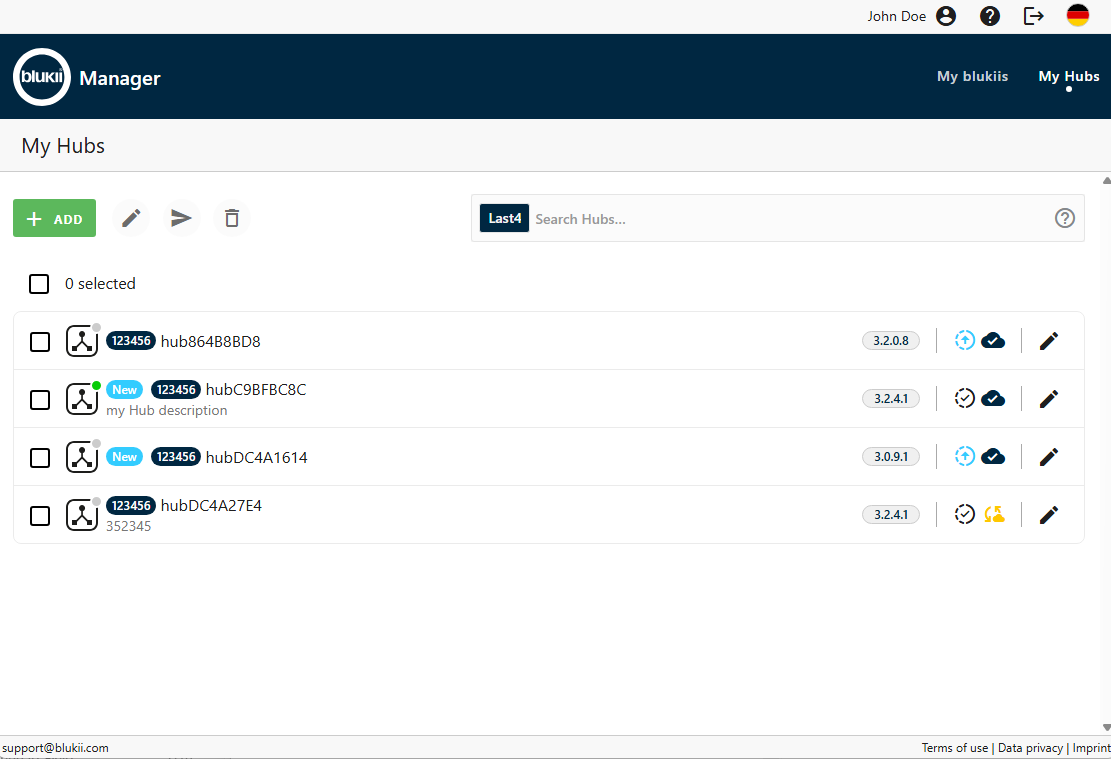
You can filter the items against several criterias.
Select items in order to remove Hubs from your account and to move them to another blukii Manager account.
Each list item contains information like online status, activation code, Hub Id, firmware version and update status.
By clicking the edit icon  of the list item, you can go to the Hub preferences page. If you select multiple Hubs and click the edit icon above list, then you can edit these multiple Hubs as bulk.
Hub Preferences
The hub preferences page contains the device EDIT and LOGS section.
Device edit
The device EDIT view contains the device information and status on top, the configuration settings below.
Device information and status
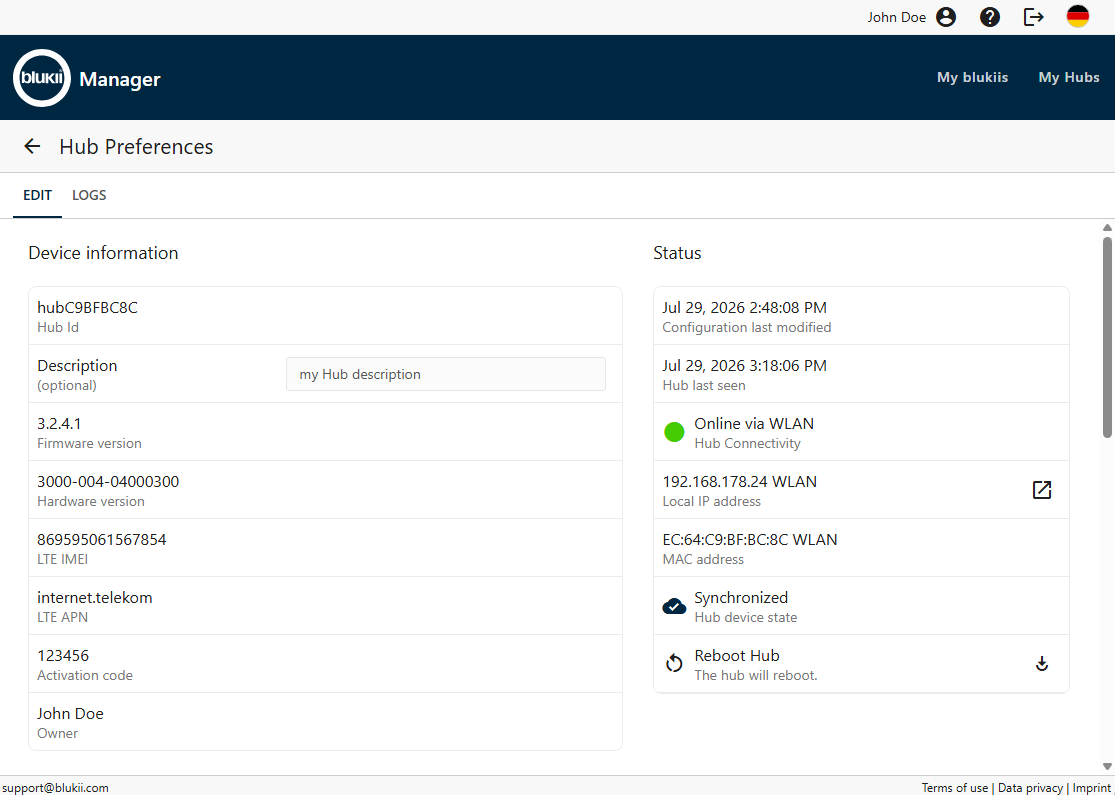
The “Device information” column contains static information about the device hardware and firmware.
Use the “Description” field for additional info like use case, location or project information. This field can also be filtered in the Hubs list. Please do not forget saving (see “Save” button at page bottom)!
The “Status” column contains live status data regarding connectivity and synchronization. Please note that live status data is only shown, if the Hubs option “Get firmware updates” is enabled (see Configuration System Settings).
The following actions are available:
-
Open IP based URL: if the Hub is online and a local IP address is detected, you can open the Local Configuration Website by clicking the icon
 .
-
Trigger firmware update: if a firmware update is available you can initiate it here:

-
Hub Reboot: Initiate a reboot if needed. Please handle with care!
Device configuration
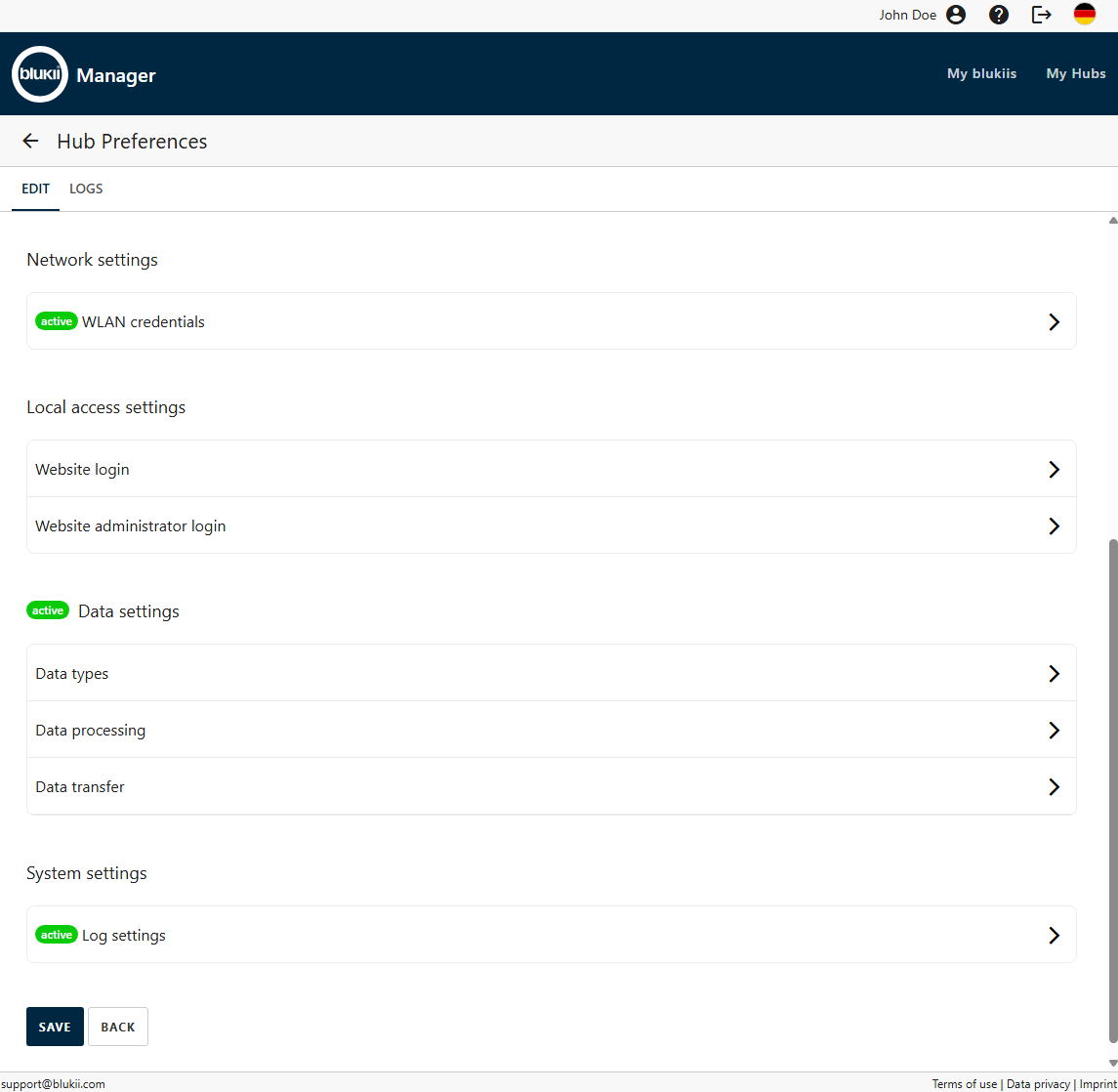
Since version 3.2.4.5, this section contains groups of configuration settings fields in order to configure the Hub remotely.
By clicking the “Save” button the settings are persistently updated. Now the Hub is marked as modified. The hub device will sync the settings update after axproximately 5 minutes.
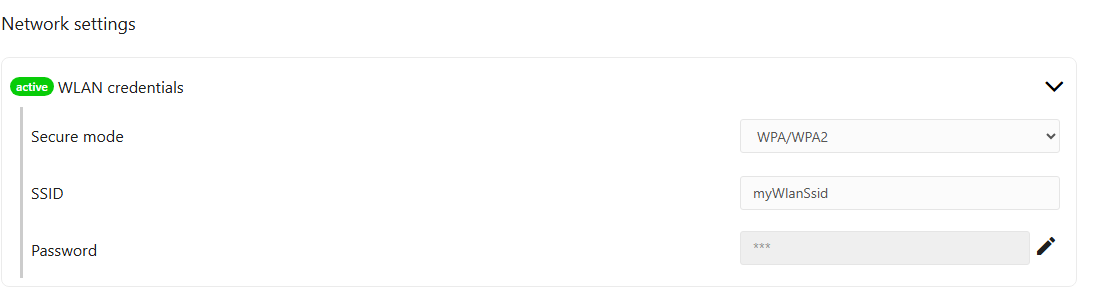
Password values are handled secure. They are saved in the blukii Manager database as encrypted values, so that no one can read it except of the Hub itself. If a password value is define the placeholder text “***” is shown in the configuration view.
Device Logs
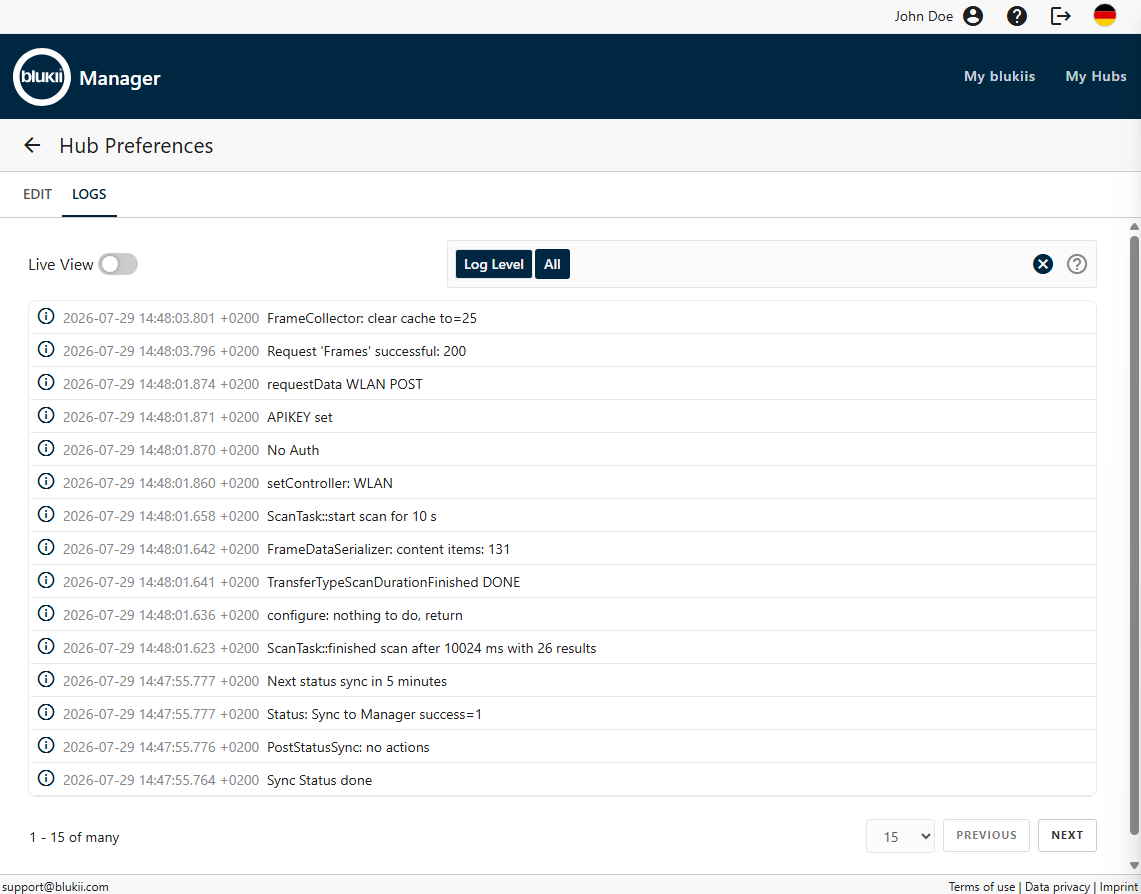
LOGS section shows all logs that the hub has sent for the last 14 days.
If the “Live View” option is checked, the view is updated automatically.